
To verify email addresses in n8n, add an HTTP Request node that calls the ListVetted email verification API. Send the address to POST https://api.listvetted.com/v1/check with your API key in an X-API-Key header and n8n gets back a verdict (valid, risky, invalid or unknown) in about a second. No community node is needed.
ListVetted is an email verification service and email validation tool for developers, marketers and sales teams. This guide gives you two ready-to-import n8n workflows: a real-time sign-up check that rejects bad addresses the moment they are submitted, and a bulk list cleaner that verifies up to 10,000 contacts from Google Sheets and sorts every lead by how safe it is to email. Both were built and tested on n8n Cloud and take about ten minutes to set up.
At a glance
- Endpoint:
POST https://api.listvetted.com/v1/check(single address) andPOST /v1/lists(up to 10,000 at once) - Authentication: Header Auth credential, name
X-API-Key - n8n nodes used: Webhook, HTTP Request, IF, Wait, Google Sheets (core nodes only)
- Cost: one credit per address, unknown results refunded, 250 free credits to start (pricing)
Why verify emails inside n8n?
Most automations treat an email address as trusted input: a form submission becomes a CRM contact, a CRM contact becomes an outreach sequence. One typo or throwaway address in that chain turns into a hard bounce, and a high email bounce rate damages the sender reputation of every campaign that follows. Checking the address at the moment it enters your workflow is the cheapest place to stop it. The difference between the two moments is simple: use real-time email verification for new sign-ups, and a bulk pass for lists you already hold (see how to clean an email list).
Before you start: the API credential
- Create a free ListVetted account and an API key in the dashboard.
- In n8n open Credentials and create a Header Auth credential. Name:
X-API-Key. Value: your key. - Select this credential in every ListVetted HTTP Request node. Nothing else needs configuring.
Workflow 1: check email addresses at sign-up (real time)
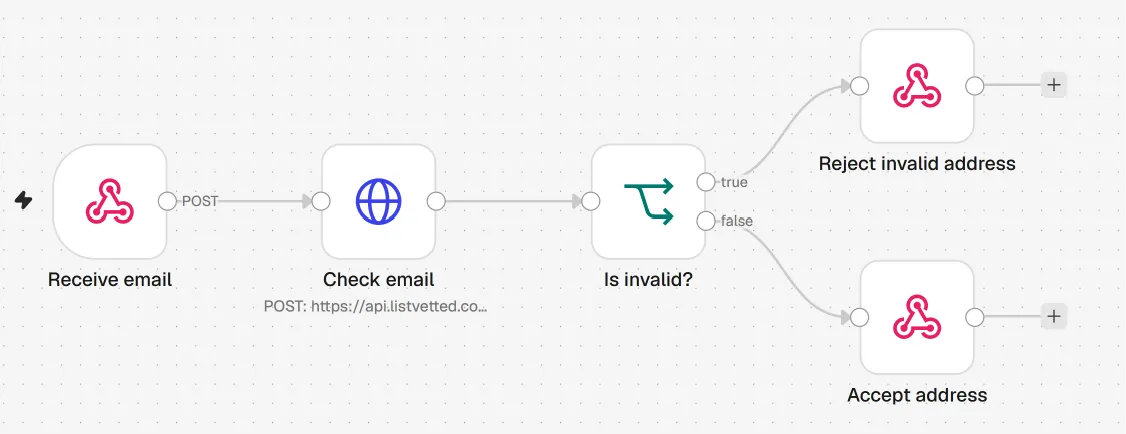
Use this when a form, app or landing page needs an immediate yes or no. Your form posts the address to an n8n webhook, ListVetted checks it, and the webhook answers with HTTP 200 (accepted) or HTTP 422 (rejected) and a plain-English reason you can show to the visitor.
How it works
- Receive email (Webhook node) accepts a POST from your form or backend.
- Check email (HTTP Request) sends the address to
/v1/check. - Is invalid? (IF node) tests whether the returned status is invalid.
- Reject invalid address answers HTTP 422 with the reason. Accept address answers HTTP 200 with the result.
Configure the Check email node
- Method: POST. URL:
https://api.listvetted.com/v1/check - Authentication: Generic credential type, Header Auth, your
X-API-Keycredential. - Body: JSON,
{ "email": "{{ $json.body.email }}" }. The Webhook node places the posted data underbody.
Test it from a terminal once the workflow is active, replacing the URL with your production webhook URL:
curl -X POST https://YOUR-N8N-HOST/webhook/YOUR-PATH \
  -H "Content-Type: application/json" \
  -d '{"email":"name@company.com"}'
ListVetted returns the verdict and the flags behind it:
{
  "email": "name@company.com",
  "status": "valid",
  "reason": "accepted",
  "explanation": "The mail server accepted this address as a real mailbox.",
  "role": false,
  "disposable": false,
  "free": false,
  "catch_all": false,
  "typo_suggestion": ""
}
What each status means for your workflow
| Status | Meaning | Sign-up workflow |
|---|---|---|
| valid | The mail server accepted the mailbox. | Accept (HTTP 200) |
| risky | Deliverable but uncertain, for example a catch-all domain. | Accept (change the IF rule to block) |
| invalid | Typo, disposable address or a mailbox that does not exist. | Reject (HTTP 422) |
| unknown | The server would not answer. Not charged. | Accept |
Risky and unknown results are accepted so you never block a real customer because a mail server was slow. The typo_suggestion field lets your form say “Did you mean name@gmail.com?” instead of just failing.
Workflow 2: clean a lead list in Google Sheets (bulk)
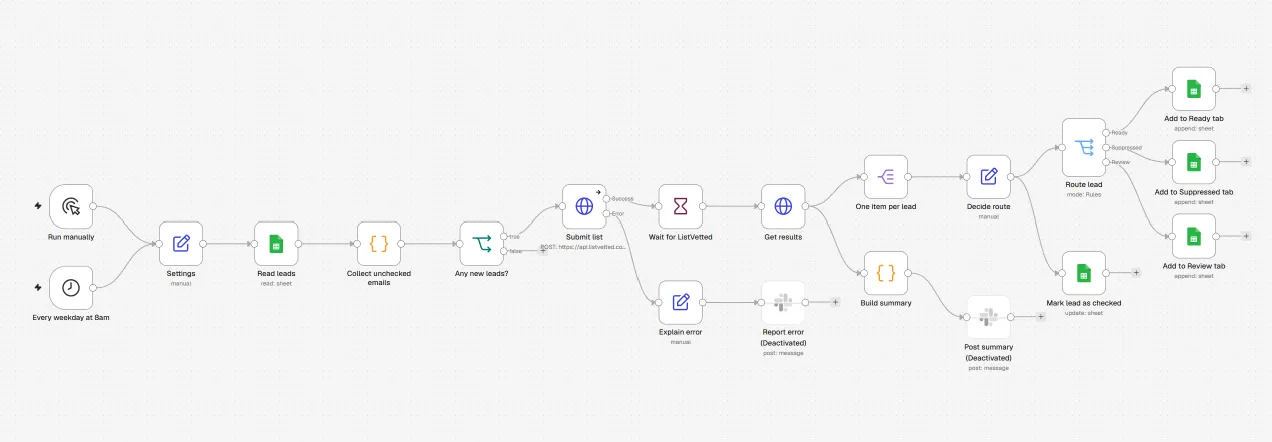
Use this before an outreach or newsletter send. New rows in your Leads tab are verified in one bulk request and every lead lands in the right tab, so your sales team only ever sees addresses worth emailing. It is a hands-off version of the process in our email list cleaning guide.
How it works
- Read leads loads your Leads tab and Collect unchecked emails removes duplicates and skips rows that already have a result, so nothing is paid for twice.
- Submit list sends everything to
POST /v1/listsin a single request, with awebhook_urlpointing back at the workflow. - Wait for ListVetted pauses the workflow. There is no polling loop: ListVetted resumes it by webhook the moment the list is finished.
- Get results fetches
GET /v1/lists/{id}/resultsand Decide route assigns each lead a destination. - Google Sheets nodes write each lead to Ready, Review or Suppressed and mark the original row as checked. A weekday 8am schedule trigger and an optional Slack summary are included.
If the submit step fails, the workflow explains the error and reports it instead of failing silently.
How leads are sorted
| Tab | Which leads | What to do |
|---|---|---|
| Ready | Valid and not a role address | Safe to send |
| Review | Risky, unknown, or a valid role address such as info@ or sales@ | Send with care, or look first. See what to do with each result |
| Suppressed | Invalid: typos, disposable domains, mailboxes that do not exist | Do not send |
Set it up
- Import the workflow and select your Header Auth credential in the Submit list and Get results nodes.
- Connect Google Sheets in each Sheets node. Connect Slack, or delete the two Slack nodes.
- Create four tabs:
Leads(columns Email, Status, Reason, Route) andReady,Review,Suppressed(columns Email, Status, Reason, Role address, Free provider, Typo suggestion, Checked at). - Open the Settings node, enter your spreadsheet ID and tab names, and run the workflow.
Download the workflows
In n8n open a new workflow, choose the menu, then Import from file and select the downloaded JSON. Select your Header Auth credential and the workflow is ready to run.
Ideas to adapt them
- Stricter sign-ups: change the IF node to also reject risky, or reject when
disposableis true. - Any form tool: point Typeform, Webflow, Tally or your own backend at the webhook URL.
- Any CRM: swap the Google Sheets nodes for HubSpot, Pipedrive or Airtable and keep the ListVetted nodes.
- Email platforms: add Mailchimp or Brevo nodes after the Ready route so only verified leads join your newsletter list.
Troubleshooting
- 401 from ListVetted: the credential header name must be exactly
X-API-Key, and the credential must be selected in the node. - Webhook returns 404: n8n has separate test and production webhook URLs. The production URL only works once the workflow is active.
- Bulk workflow never resumes (self-hosted): ListVetted must be able to reach your n8n instance. Set the
WEBHOOK_URLenvironment variable to your public address.
Frequently asked questions
How do I verify an email address in n8n?
Add an HTTP Request node that sends POST https://api.listvetted.com/v1/check with an X-API-Key header (a Header Auth credential) and a JSON body containing the email. The response returns a status of valid, risky, invalid or unknown, plus a reason and flags such as role address and disposable.
Do I need a community node or plugin?
No. Both workflows use only n8n core nodes (Webhook, HTTP Request, IF, Wait, Google Sheets). The ListVetted email verification API is called through the standard HTTP Request node.
How many addresses can the bulk workflow check?
Up to 10,000 addresses per run. Duplicates are removed first and rows that already have a result are skipped, so re-running the workflow never pays twice.
What does the sign-up workflow do with risky and unknown results?
It accepts them. Only invalid addresses, such as typos, disposable domains and mailboxes that do not exist, are rejected with HTTP 422. You can change the IF rule to block risky addresses as well.
Does it work on self-hosted n8n?
Yes. The sign-up workflow needs a reachable webhook URL. The bulk workflow also needs n8n to be reachable from the internet so ListVetted can resume the Wait node when the list is finished.
How much does it cost?
Each address costs one credit and unknown results are refunded automatically. New accounts get 250 free credits and credit packs start at $5 per 1,000 checks.
Can I use a CRM instead of Google Sheets?
Yes. Replace the Google Sheets nodes with the n8n node for HubSpot, Pipedrive, Airtable or any other app and keep the ListVetted nodes unchanged.
Related guides
- Email verification API documentation
- Real-time email verification
- Free email checker for one-off checks
- How accurate is email verification?
- How ListVetted verifies an address
Start verifying emails in n8n
Create your account and run both workflows with 250 free credits using our email verification service today, or try a single address first with the free email checker.
Last updated 23 November 2026. Tested on n8n Cloud.